Total Pageviews

Saturday, October 28, 2017

Image result for friendship quotes

ABOUT US!!

PiaMia's POV.
      We have so much stories to tell and there are problems na dumating,but we challenge ourselves na kakayanin namin ito.Kapag magkasama kami,we feel like there's no tomorrow when we laugh. In bad times,nandito kami sa isa't-isa handang magdamayan.We promise together,if we grew up,Were going to travel around the world and having a business like hotels or restaurants. 
   
        We have the same favorites too like eating foods specially street foods,shopping to the UK(ukay-ukay),and selfie together.
That's why WE LOVE EACH OTHER...

 
Image result for friendship quotes

RULES OF NETIQUETTE

Related image

Image result for rules of netiquette

ONLINE SAFETY AND SECURITY 

 ¨INTERNET
  – defined as the information superhighway”.
   This means that anyone has access to this highway, can place information and can grab that information.

TIPS TO STAY SAFE ONLINE
 1. Be mindful of what you share online and what site you share it to.
2.Do not just accept terms and conditions; read it.
3.Check out the privacy policy page of a website.
4.Know the security features of the social networking site you use.
5.Do not share your password with anyone.
6.Avoid logging in to public networks/Wi-Fi. Try to browse in “Incognito (or private) mode
7.Do not talk to strangers whether online or face-to-face.
8.Never post anything about a future vacation.
9.Add friends you know in real life.
10.Avoid visiting untrusted websites.

INTERNET THREATS


1.Malware – stands for malicious software.
Types of Malware:
¨Virus – a malicious program designed to replicate itself and transfer from one computer to another either through internet or flash drives and CD’s.
¨Worm – a malicious program that transfers from one computer to another by using the network to send copies of themselves to other PCs.
¨Trojan – a malicious software that disguised as useful program but once downloaded or installed, leaves your PC unprotected and allow hackers to get your information.
 ¨Spyware – it has the ability to monitor what you are currently doing and typing through keylogging.
¨Adware – a program designed to send you advertisements, mostly as pop-ups.
2.Spam – unwanted email mostly from advertisers. It can be used to send malware. 
3.Phishing – its goal is to acquire sensitive personal information like passwords and credit card details.

THINK BEFORE YOU CLICK
      1.Once you post something on the web, you have no control of who sees your posts.
      2.Your friends depend on you to protect their reputation online.
      3.Set your post to “private”.
¨Private – search engines will not be able to scan the post.
4.Avoid using names.
5.If you feel that a post can affect you or other’s reputation, ask the one who posted it to pull it down or report it as inappropriate.

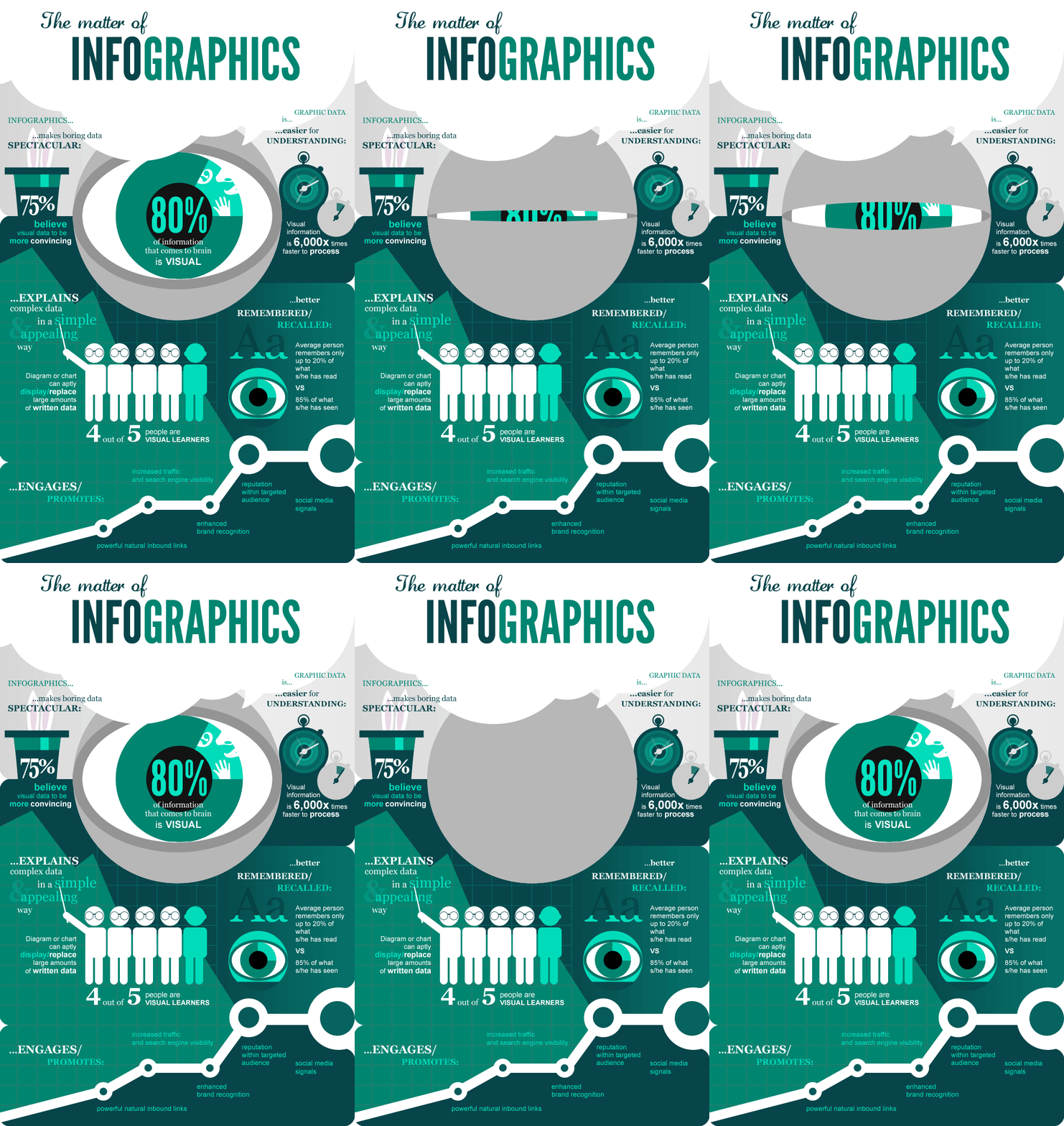
THE MATTER OF INFOGRAPHICS


Image result for infographic word calligraphy


WHAT IS INFORMATION GRAPHIC?

       - Information Graphic or "Infographicused to represent information, statistical data, or knowledge in a graphical manner usually done in a creative way to attract the viewer’s attention.   


CREATE AN AWESOME INFOGRAPHICS WITH THESE FOUR SIMPLE STEPS:
  1. Change the images.
  2. Change the fonts.
  3. Change the background.
  4. Change the colors. Change the color of your text boxes and text to add extra flair.     
WHAT IS PIKTOCHART?

                -Piktochart is a web-based infographic application which allows users without intensive experience as graphic designers to easily create professional-grade infographics using themed templates.

Image result for piktochart

CREATING INFOGRAPHICS USING PIKTOCHART:
         1. Create a Piktochart account by going to www.piktochart.com and click sign up on the upper right corner of the page. 
          2. Fill up the information on the Sign Up page; alternatively, you can connect with Google+ or Facebook.
         3. Once you have created an account and logged in, select a template for your infographic.
         4. The Piktochart editor will open. It is the center of the page that takes up the most space (working area), and your editing tools can be found on the left.
          Tools:
a. Graphicsallows you to insert lines, shapes, icons, and even photos.

b. Uploadsallows you to upload images for your infographic.

c. Backgroundchanges the background of a selected block.

d. Textallows you to insert text to your infographic with the option to add text frames.

e. Color Scheme allows you to modify the color scheme of your infographic

f. Toolsallows you to create charts, maps, and videos.
       
       5. To save your work, click on save on the top right of the page. To save it in your computer, click on Download. In the Download options, select the medium-sized and the PNG file type.